Usage Guide
Basic Gameplay
Objective
Clear the board without triggering any mines. Reveal all safe squares to win.
How to Play
- Reveal: Tap or click a square to reveal it
- Flag: Long-press (iOS) or right-click (Mac) to flag a suspected mine
- Chord: Double-tap (iOS) or double-click (Mac) on a revealed number to auto-open adjacent squares (when the correct number of flags are placed)
- Numbers: Each number shows how many mines are adjacent to that square
First-Click Safety
Your first reveal will never be a mine. Mines are placed after your first click, excluding the clicked tile.
Difficulty Levels
Board sizes are optimized per device for the best playing experience:
iPhone
| Level | Grid | Mines |
|---|---|---|
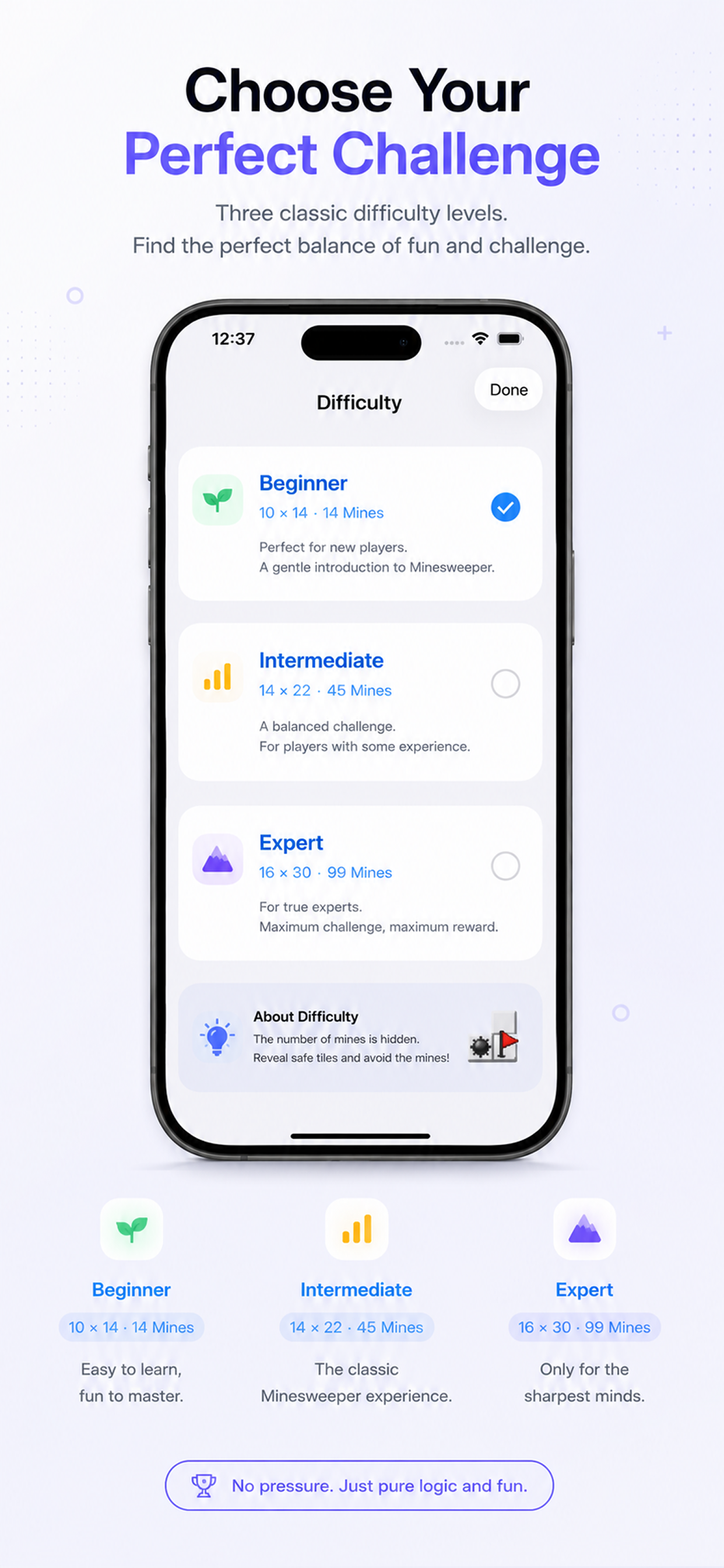
| Beginner | 10 × 14 | 14 |
| Intermediate | 14 × 22 | 45 |
| Expert | 16 × 30 | 99 |
iPad
| Level | Grid | Mines |
|---|---|---|
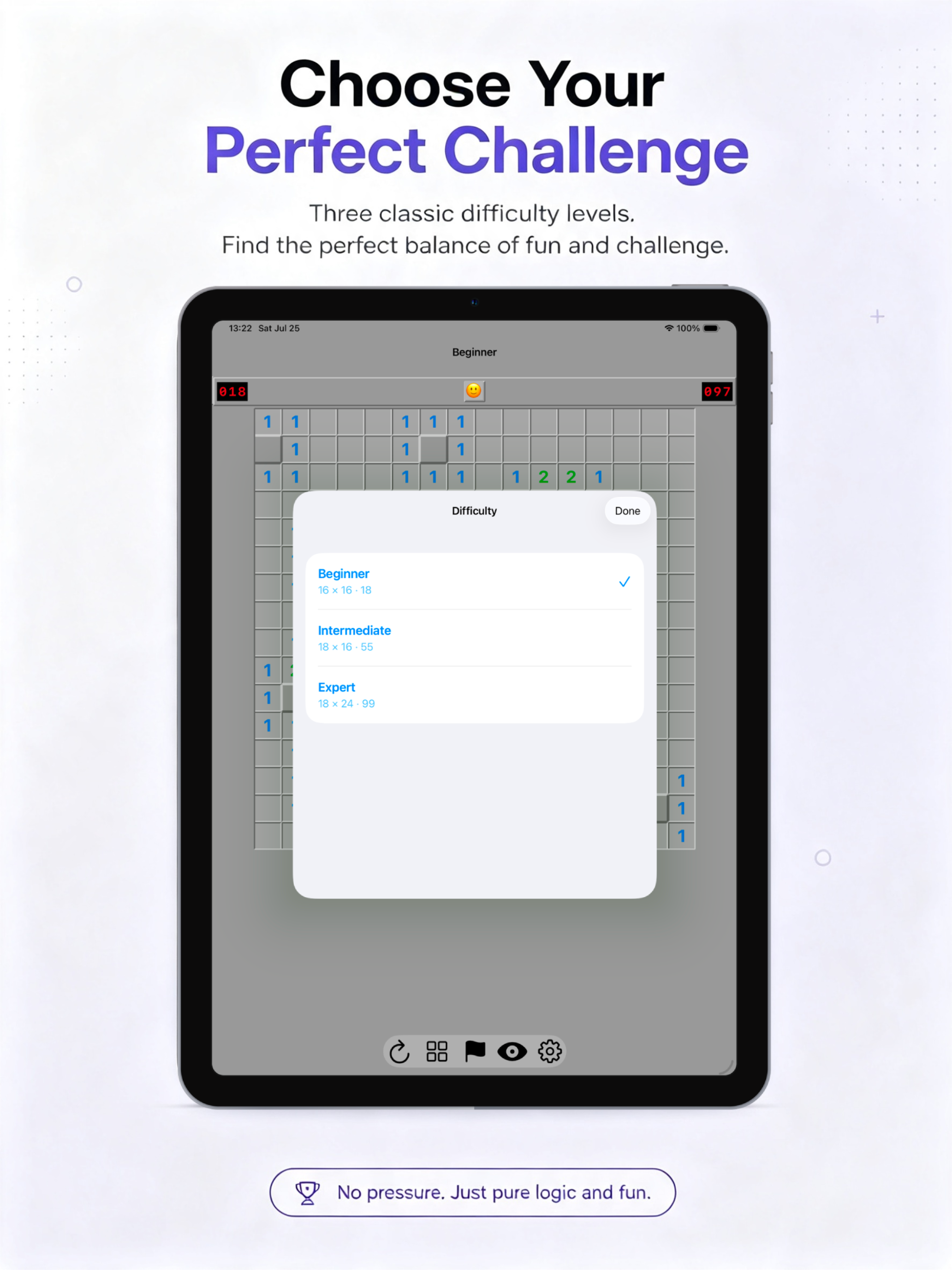
| Beginner | 16 × 16 | 18 |
| Intermediate | 18 × 16 | 55 |
| Expert | 18 × 24 | 99 |
Mac
| Level | Grid | Mines |
|---|---|---|
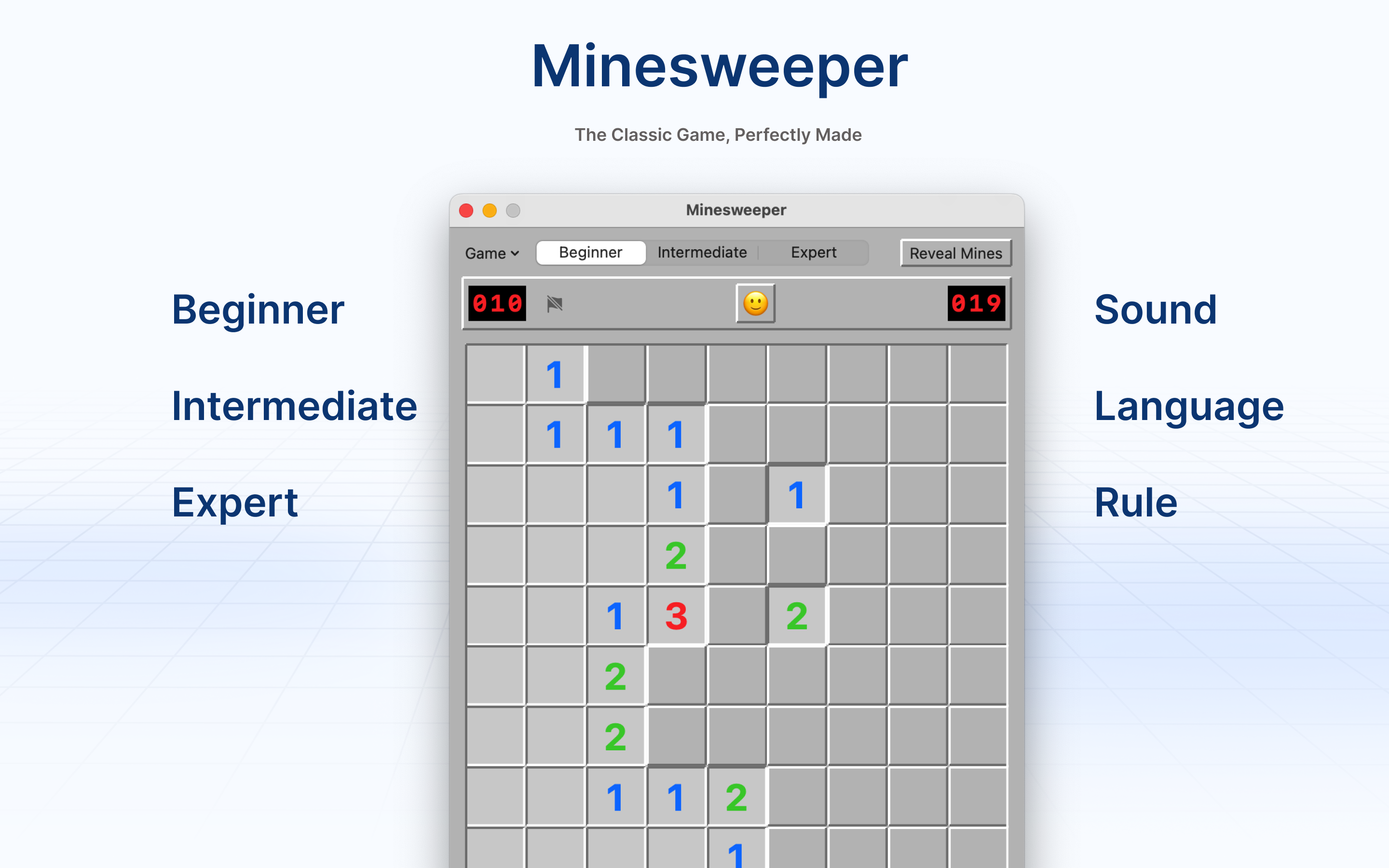
| Beginner | 9 × 9 | 10 |
| Intermediate | 16 × 16 | 40 |
| Expert | 30 × 16 | 99 |
Game Controls
iPhone / iPad
- Tap: Reveal a square
- Long press (0.4s): Toggle flag on/off
- Double-tap: Chord (auto-reveal adjacent squares)
Mac
- Left-click: Reveal a square
- Right-click: Toggle flag on/off
- Double-click: Chord
- Scroll: Zoom in/out
Keyboard Shortcuts (Mac only)
| Shortcut | Action |
|---|---|
⌘N | New game |
⌘1 | Beginner |
⌘2 | Intermediate |
⌘3 | Expert |
⌘⇧R | Reveal mines (practice mode) |
Timer & Scoreboard
Timer
A millisecond-precision timer starts on your first click and stops when the board is cleared or a mine is triggered. The time is displayed in the status bar.
End-of-Game Scoreboard
When a game ends (win or lose), a scoreboard appears showing:
- Time: How long the game took
- 3BV: Bechtel's Board Benchmark Value — a measure of board difficulty
- Clicks: Breakdown of left clicks, right clicks, and double clicks
- Effective clicks: Efficiency metric
On iPhone/iPad, the scoreboard appears as a bottom sheet. On Mac, it appears below the board.
Sound Effects
Minesweeper includes subtle sound effects for key game events:
- Click: Tile reveal
- Flag: Flag placed
- Unflag: Flag removed
- Boom: Mine triggered
- Win: Board cleared
Toggle sound on or off in Settings → Sound.
Settings
Access settings through the gear icon:
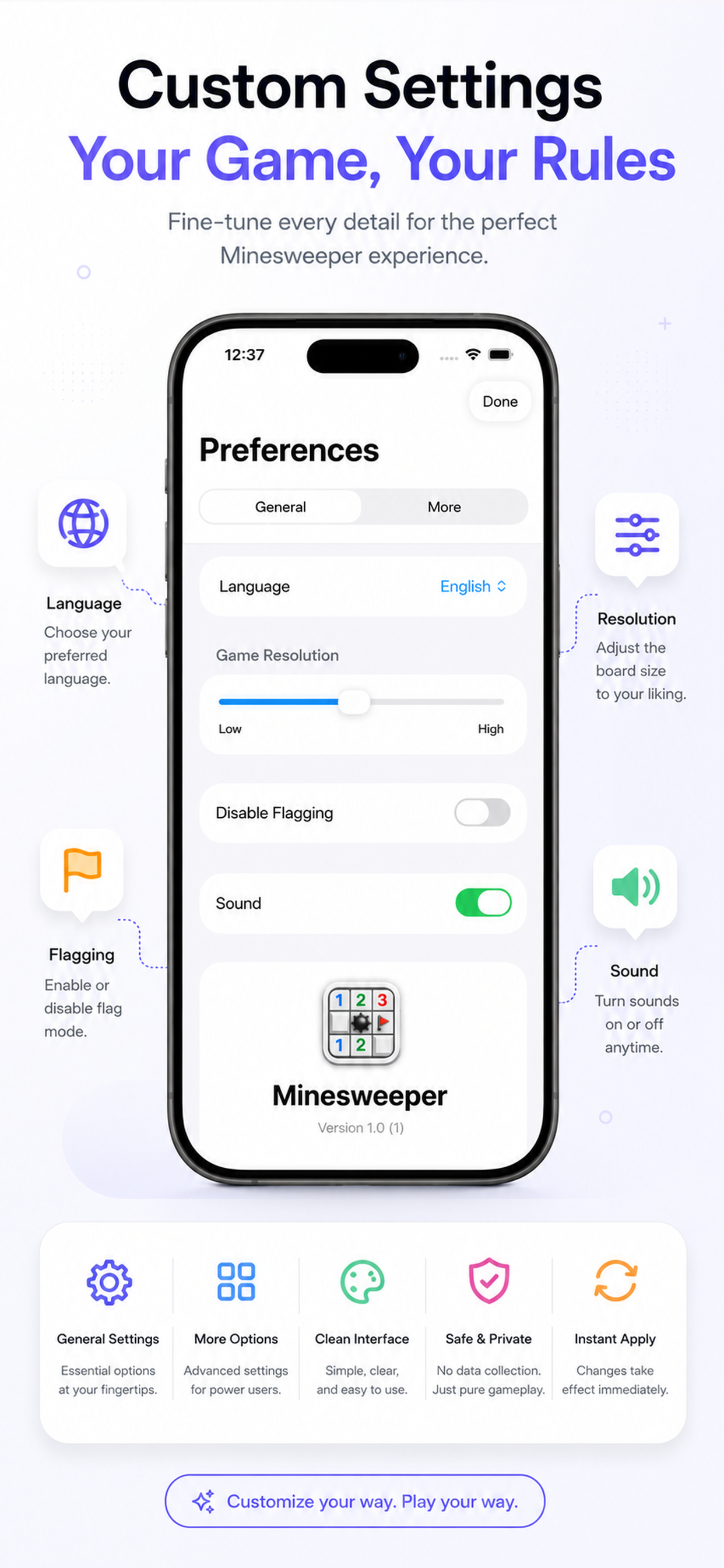
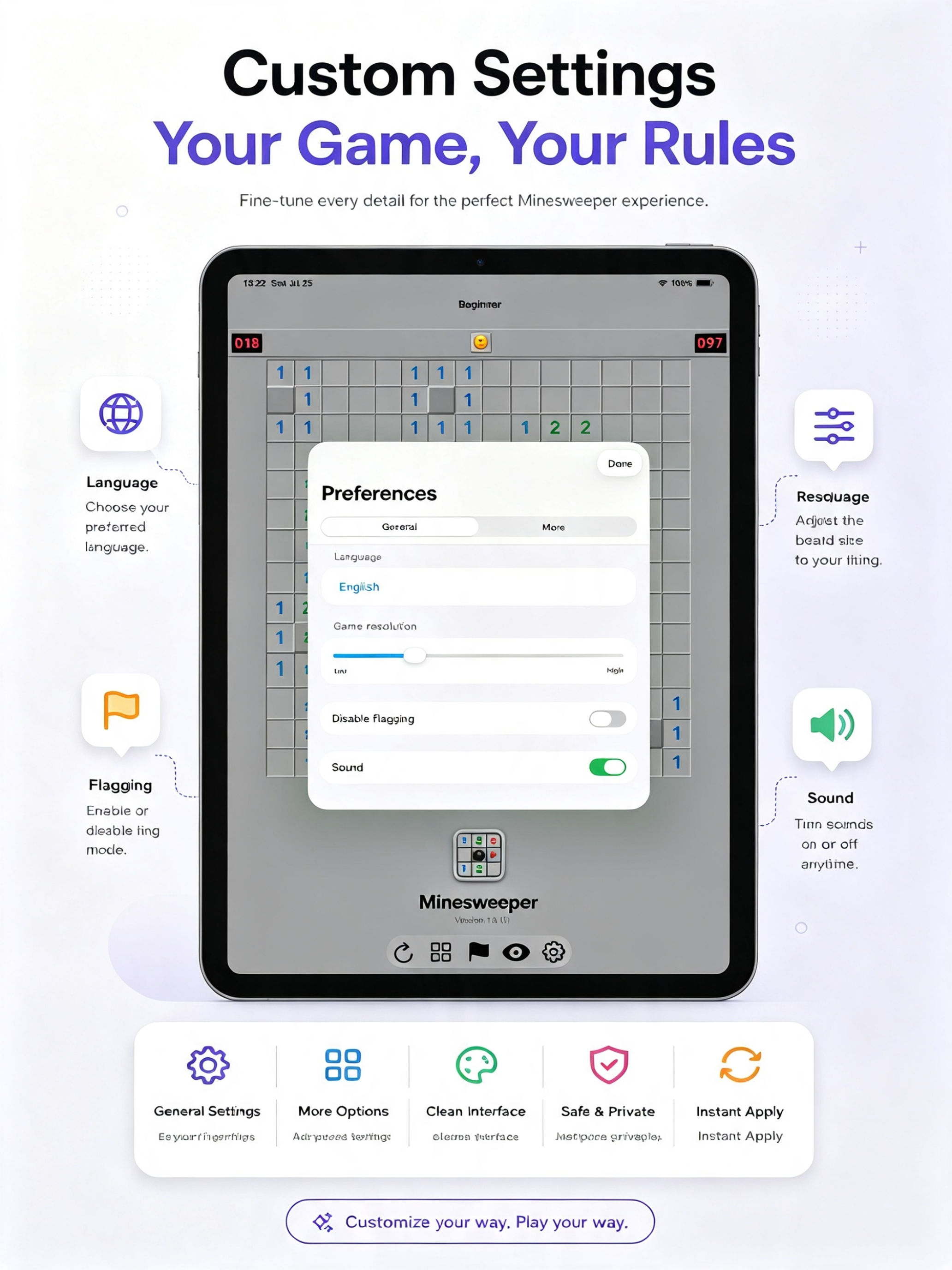
- Language: Switch between 25 supported languages at runtime — no restart needed
- Game Resolution (Mac only): Adjust tile size with a slider
- Disable Flagging: No-flag mode — long-press/right-click opens tiles instead of flagging
- Sound: Toggle sound effects on/off
Settings are stored locally on your device using UserDefaults.
Tips and Tricks
- First click is always safe — your first reveal will never be a mine
- Start from corners — corners have fewer adjacent squares, making deductions easier
- Use flags wisely — flagging helps you track suspected mines and enables chording
- Look for patterns — "1-1" and "1-2" patterns reveal mine locations predictably
- Don't guess until you must — work through the board systematically before relying on chance
- Use chording — once you've flagged the correct number of mines around a number, double-click/tap to auto-reveal the rest